CodeBot Setup
Before using CodeBot, the smart coding assistant in Fire and Water, it needs to be appropriately configured in a few easy steps. This can be done by opening the Settings/Options window, available via ⌘, or "Fire|Settings" (in Fire) and Ctrl_, or "Tools|Options" (in Water and Earth) and going to the "CodeBot" tab.
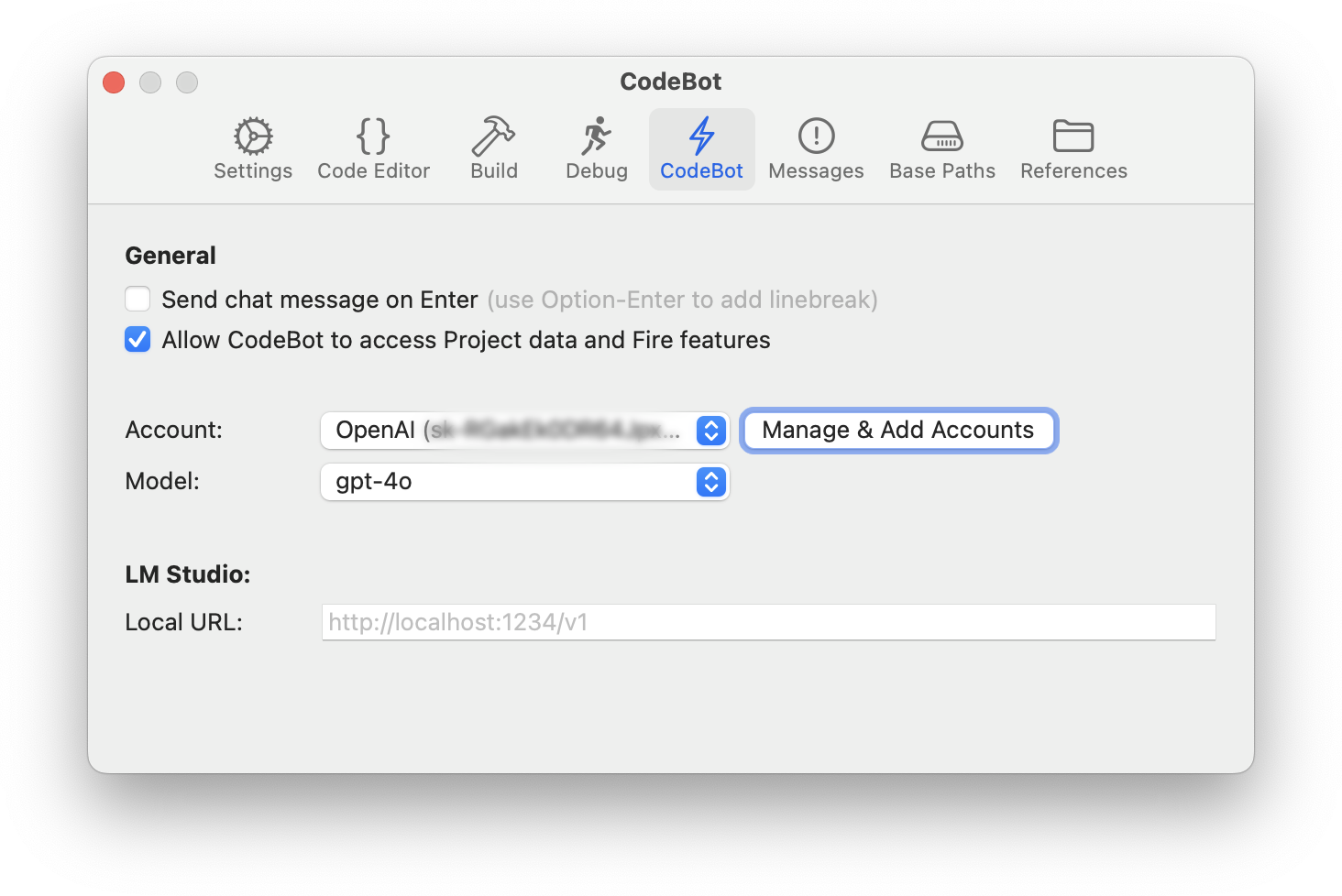
CodeBot needs one (or more) AI models to work with. You have two options here, you can either connect it to an AI provider of your choice from the list below (the recommended option), or — if you're experienced with AI and/or are running on a very powerful machine, you can run the open source LM Studio locally, and have CodeBot use one of the models it supports.
Unless you really know what you are doing, we recommend configuring a third AI provider.
Adding AI Accounts
To do this, click on the "Manage Accounts" button, to bring up the new Account Manager (which is also always available directly from the "Tools" menu):
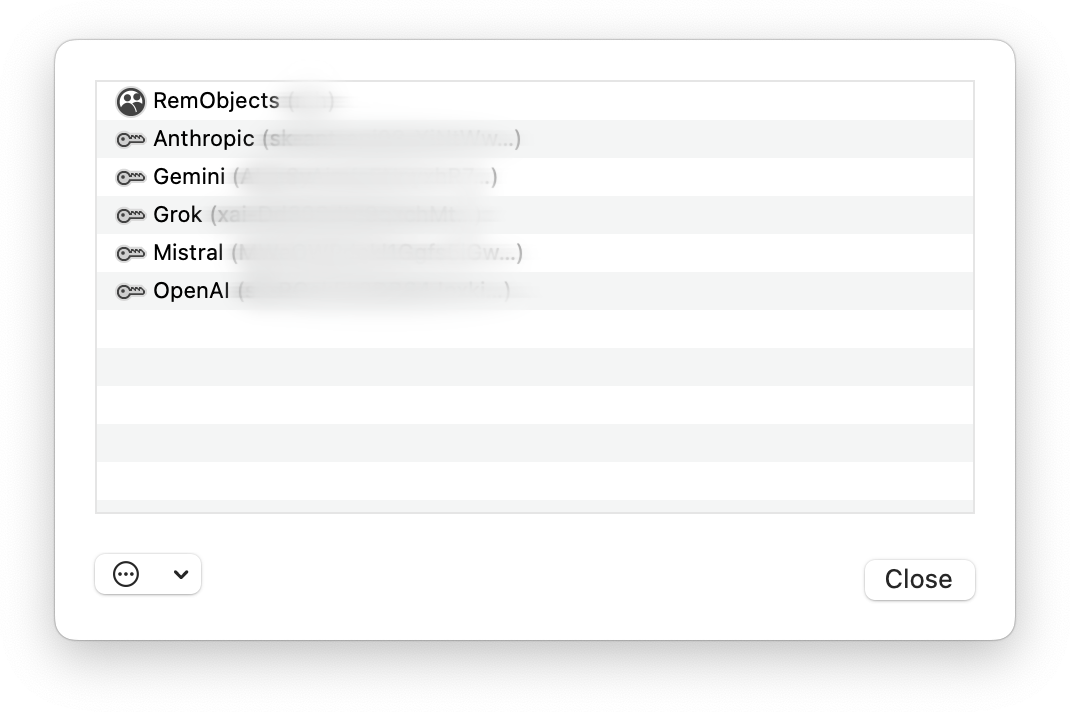
The Account Manager may already show your RemObjects account that Fire/Water uses to keep your licenses up to date. You can add more accounts by clicking the "..." button at the bottom left, includin accounts for the following AI providers:
- Anthropic (Claude)
- Google (Gemini)
- xAI (Grok)
- Mistral
- OpenAI (ChatGPT)
Simply pick the account type you would like to add, and in the subsequent window, enter your API key. If you are unsure where to find that key (or still need to sign up for an account with the provider in question), you can click the "Visit Website" button to open their site and follow the instructions there.
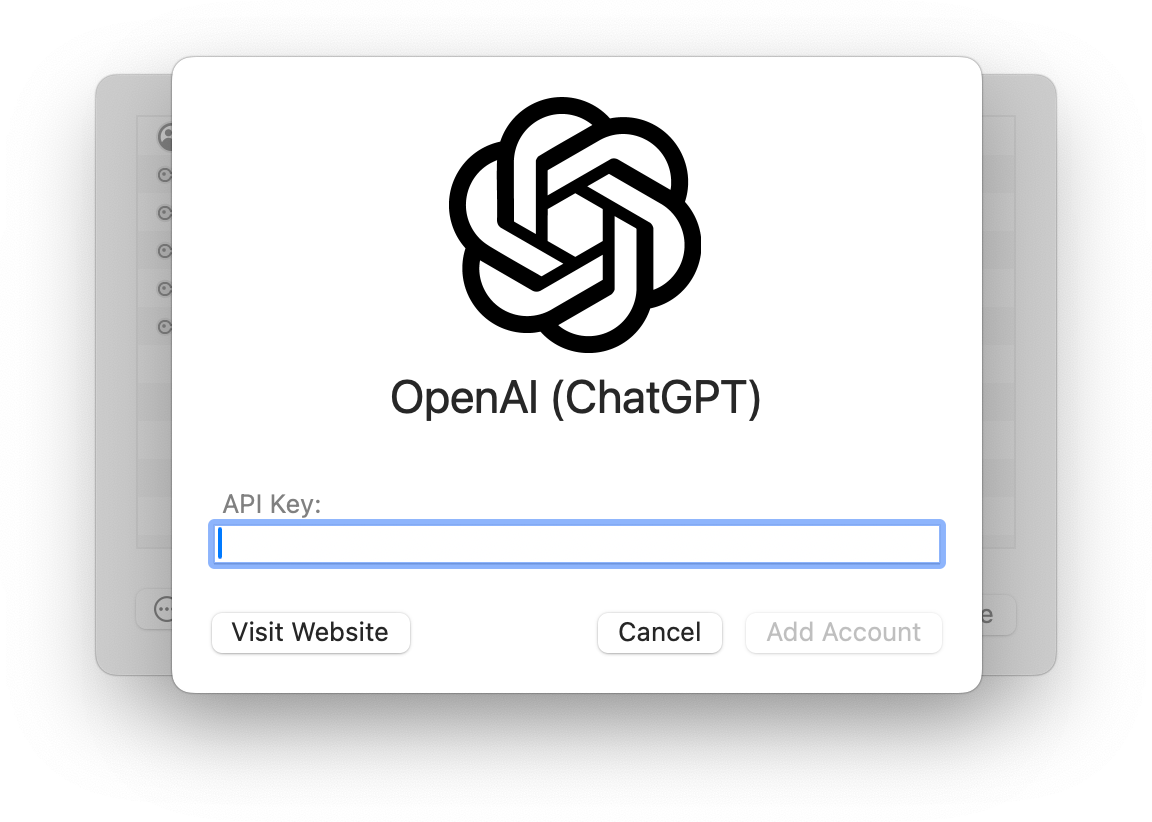
Once the key is entered, click "Add Account". Account manager will verify that the APi key works, and then add the new account.
If this is the first and only AI account you are adding, it will automatically be set to be your active account.
Selecting AI Accounts and Models
Back in the Preferences window, you can now select between all the AI accounts you have connected (if you connected more than one) by choosing from the "Account:" popup. Your first one should already be selected.
As you pick an account, the "Model/Strategy:" popup will populate with the list of different LLM models available (and suitable for CodeBot) from the provider, as well as – for some providers – predefined model strategies that are optimized for best perfoemance/cost rato across tasks.
You can check with the AI provider to see what model they suggest. Note that the capabilities and usage costs can vary drastically between models
Our current recommendations are to use the "Latest" strategy for your provider, if available. It combines the best models for critical tasks, with a suitable lower-cost models for simpler tasks.
Note: AI model offerings and names are constantly changing. Please check the provider’s site or API dashboard for up-to-date information.
Working with Local Models
If you want to let CodeBot use local models running on your system (or local network), you can use its support for LM Studio and Ollama.
Running a local model is a good option if you are concerned about code privacy and your questions and code are shared with a third-party AI provider.
You can read more about setting up CodeBot for LM Studio or Ollama at codebot.docs.remobjects.com/Elements/Setup/